NEW IN 9ID: Give Your Gatehouse Team Full Operational Control With the Guard Portal


For a security guard at the gatehouse, the entire shift comes down to one question: who is standing in front of me, and are they allowed in?
Answering that shouldn’t involve digging through complex administrative menus, cross-checking paper sheets, or guessing whether a contractor’s safety paperwork is valid.
Guards need clear answers, fast check-ins, and an interface built for the reality of a busy gate.
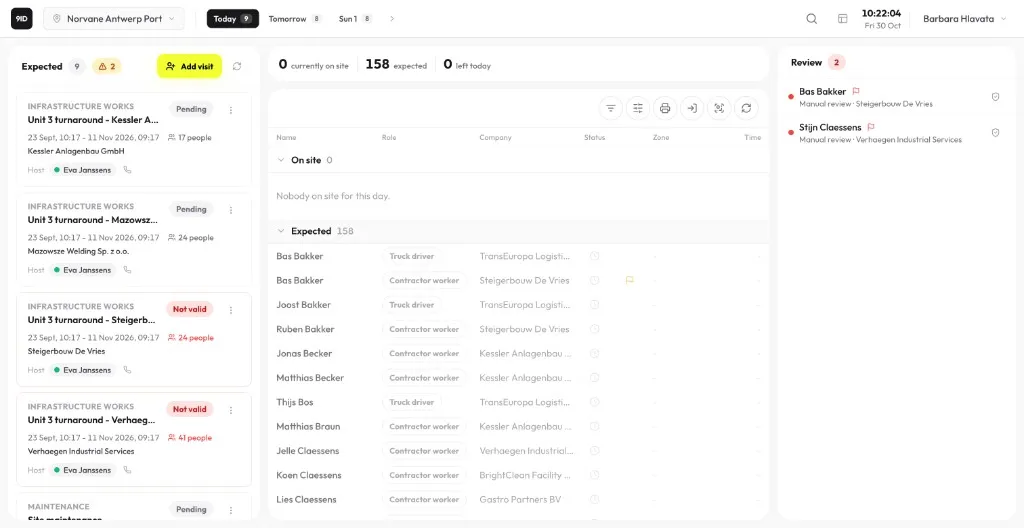
The Guard Portal is a new operational dashboard, specifically for the guards, built into 9ID. It is part of the platform, not a separate product. People still complete onboarding, credential checks, and safety briefings before they arrive. The dashboard is where that shows up at the desk. A guard sees who is on site, who is checked in, and who is expected. They can open a person’s tasks and documents to see what is verified and what is still open, and they can see why someone is stuck in review, such as a missing or expired document or an open onboarding task.
By giving guards an interface designed specifically for their role, the portal delivers on three core operational priorities: site-wide visibility, reduced admin time, and stricter security.
Manual gate work vs. the Guard Portal
Manual gate work runs on logbooks, printed lists, phone calls, and memory. Every arrival is a lookup. Every evacuation is a guess.
| At the gate | Manual | 9ID Guard Portal |
|---|---|---|
| Who is on site | Paper logbook, headcount by radio | Live list by company or zone |
| Who is expected | Printed lists, emails, phone calls | Today’s bookings on one dashboard |
| Walk-ins | Forms filled in at the window | Registered on the spot, badge printed |
| Flagged arrivals | Discovered at the barrier | Flagged before arrival, reason on screen |
| Evacuation | Roll call from a clipboard | Muster-zone marker and a printable list |
Guards stop searching. They see the full picture and act on it from one screen.
A shift at the gate
The Guard Portal mirrors how a gate actually operates, from the start of a shift to check-out.
A shift starts with the Expected panel: every booked visit for the day, with badges ready to print. During peak arrivals, pre-cleared contractors scan the QR from onboarding and walk through, while the Attendance panel fills up live, grouped by company and zone.
When someone turns up without a booking, the guard registers them on the spot and prints a badge. When screening flags an arrival, the Review panel shows who and why.
In an evacuation, the guard marks people at the muster zone and prints the on-site list. At the end of the shift, they check out anyone who left without scanning, so the next shift starts with an accurate headcount.
A walkthrough of the Guard Portal
Three core operational benefits
A clear view of their site
Instead of clicking through disconnected lists or checking multiple tabs, each guard gets a clear view of their own site.
- Expected: who is booked in today, on the dashboard before they arrive.
- Attendance: who is on site now, grouped by company or zone.
- Review: anyone held by automated compliance checks.
Keep the barrier moving
When gate staff have to jump between different tools to register an unexpected visitor or issue a pass, the line behind the barrier backs up. The Guard Portal keeps those daily actions on the main screen.
- Walk-ins: register a walk-in and create the visit on the spot.
- Badge printing: print a badge from the dashboard.
- Everything in one place: opening a visitor or a document shows the full detail there, so the guard stays in the same workflow.
Guards act, officers decide
The Guard Portal keeps the guard’s work and the officer’s decision separate.
- The guard: When someone is flagged, the dashboard shows the reason, such as an expired document, an open onboarding task, or missing documents. The guard explains it and helps the worker take action.
- The safety officer: Approving a rejected document, or clearing someone screening has flagged, sits with the security officer. That control is not on the guard’s dashboard.
A site that wants one person to do both can grant that role the officer permissions too. Set up as intended, the guard acts and the officer decides.
How to turn it on
The Guard Portal is included across all 9ID accounts at no extra charge.
- Go to Library → Guard portal and switch the module on.
- In Settings → Roles, assign the Guard Portal permission to your gate staff and select the sites they cover.
- Gate staff open the dashboard from the top profile switcher, or at
/app/admin/guard.
FAQs
Does a guard need administrator permissions?
No. A guard role needs the Guard portal permission and the sites that role covers.
Can a guard see another site?
The dashboard shows one site at a time. A guard who covers more than one site switches between those sites.
Can a guard clear someone screening has flagged?
No. A guard sees why the person was flagged and can help them take action. Approving a rejected document, or clearing someone screening has flagged, sits with the security officer, unless the role is also given the officer permissions.
What happened to the attendance tab?
The standalone attendance tab now lives in the Attendance panel on the Guard Portal. The home dashboard links there.
Does it work on a phone?
It is built for a desk or a wall screen at a gate.